When you have a job to complete, you’ll find it in your job list. Follow these steps to start and complete it:
- Tap a job to open it.
- Review the job details by scrolling from the top of the page to the bottom.
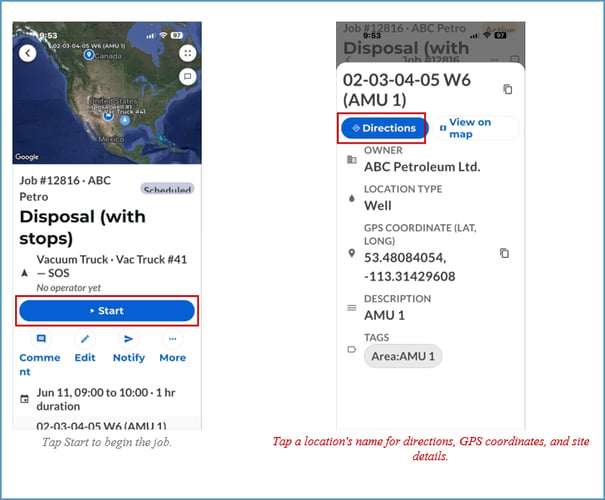
- Tap a location name anytime to view directions, GPS coordinates, and other site details.
- When you’re ready, tap the blue Start button near the top of the job page.
- You can now minimize the app and complete the work outside your mobile device.
- Reopen the app to do any of the following:
- Add a comment by scrolling to the Activity section at the bottom and tapping + comment.
- Review location details by tapping the location name(s) in the job.
- Pause the job if you’re taking a long break or plan to resume it later.
- Edit job details:
- Photos or Files: Scroll to the attachments section, then tap the Add photo/file button.
- Optional Forms: Scroll to the attachments section, then tap the form icon to search for a form or add attachments to the job.
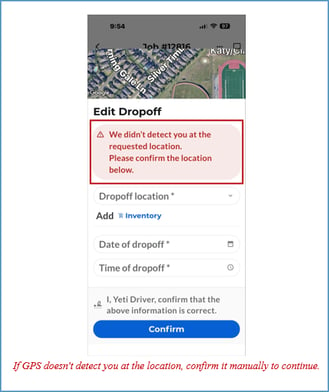
- Confirm your pickup and drop-off when you arrive at each location.
- Complete a required job form, if applicable, by tapping the blue Fill out Form button near the top of the job.
- When you’re finished, slide the Complete button to finish the job.
If the app is unable to confirm that you are at the requested location, you will see a warning message and be asked to confirm the correct location manually before continuing.